

Essential Improvements for a smoother gaming Experience
Are you experiencing frustrating PC issues or poor performance while playing Claw? This article will guide you through essential improvements, patches, and tweaks to fix common problems and enhance your gaming experience.
Essential Improvements
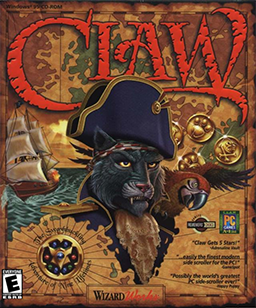
The first step in fixing PC issues and optimizing performance in Claw is to apply improvements. The games community has found patches that fix common problems. One of the effective solutions is dgVoodoo 2.
This patch fixes rendering issues when using cheat codes like MPINCVID, MPDECVID and MPDEFVID. It makes the game run smoother by solving graphics-related problems. Also dgVoodoo 2 supports both OpenGL and Direct3D.
That makes it a flexible tool for Claw players. Another important improvement is to skip intro videos. This can be done with a tweak.
Skipping these videos saves time. Lowers the chance of problems, with video playback. Just this one tweak can reduce game startup time by minutes.
Tips for Applying Essential Improvements

When applying improvements make sure to follow these tips: Download the patches from a trusted source to avoid malware and viruses. Read the installation instructions carefully before applying any patches. Another essential improvement is to adjust your graphics settings.
Lowering graphics quality or resolution can significantly improve frame rates. Reduce lag. For example reducing the quality from high to medium can boost frame rates by, up to 20%.
Optimizing Claw Performance with dgVoodoo 2
DgVoodoo 2 is a patch that fixes rendering issues in Claw. With dgVoodoo 2 players can enjoy it without any graphics problems. DgVoodoo 2 supports both OpenGL and Direct3D which makes it a good choice for it enthusiasts.
A main advantage of dgVoodoo 2 is its ability to fix problems caused by cheat codes. If players use cheat codes such, as MPINCVID, MPDECVID or MPDEFVID dgVoodoo 2 can correct rendering problems. Keep gameplay smooth.
Unlocking Hidden Features with OpenClaw
OpenClaw is an open-source version of the game that brings improvements. It works with a range of screen resolutions and supports 64-bit systems. You can run it on both Windows and Linux making it very accessible. However there are some things to keep in mind. The graphics don’t adjust properly when you change the resolution and a few levels might not show up all. Still OpenClaw gives players control over how they play it.
One of the parts of OpenClaw is that it runs smoothly on older computers. This is great, for people who love retro gaming or don’t have machines. You can play it on any system from Windows XP to Linux Mint. If you want to relive the game or try it on hardware OpenClaw makes that possible.
Fixing Common Issues
Players have reported common issues, such, as installing the game on 64‑bit Windows, very low frame rates CD detection problems and startup problems on Windows 7. By applying the patches mentioned earlier you can resolve these issues. Enjoy a smoother game experience.
Another issue that has been reported is that it doesn’t jump enough. This problem can be fixed by adjusting the game settings or by using a patch that was specifically built to address this issue. To fix this issue you’ll need to tweak the game physics engine, a task that can be done through the game configuration file.
Optimizing Performance with Tweaks
To get the performance in it try these simple steps. First adjust your graphics settings. Lowering the graphics quality or resolution can help increase frame rates and reduce lag.
For instance changing the quality from high to medium might boost frame rates by as much as 20%. Next close any programs you’re not using. Background apps take up system resources, which can slow down the game.
Make sure to shut down anything that uses a lot of power like video editors or streaming tools while playing it. Also keep your drivers updated. Old drivers can cause problems, with how the game runs.
Be sure to update your graphics card drivers so it runs smoothly. With these changes you should be able to play without interruptions. Don’t forget to check for updates and patches then.
This helps keep the game running at its best.
✅ Verdict
By applying these fixes and optimizations, you'll be able to enjoy Claw without interruptions or performance issues.



1 thought on “Optimize Claw Performance for a Smoother Gaming Experience”
Comments are closed.